

Monitors for Work, Gaming, and Everyday Use
Compare monitors by display quality, size, connectivity, ergonomics, and performance. This catalog makes it easier to narrow options for office work, creative tasks, gaming, and general home use.
1,129 products in catalog
1,129 results
Filters
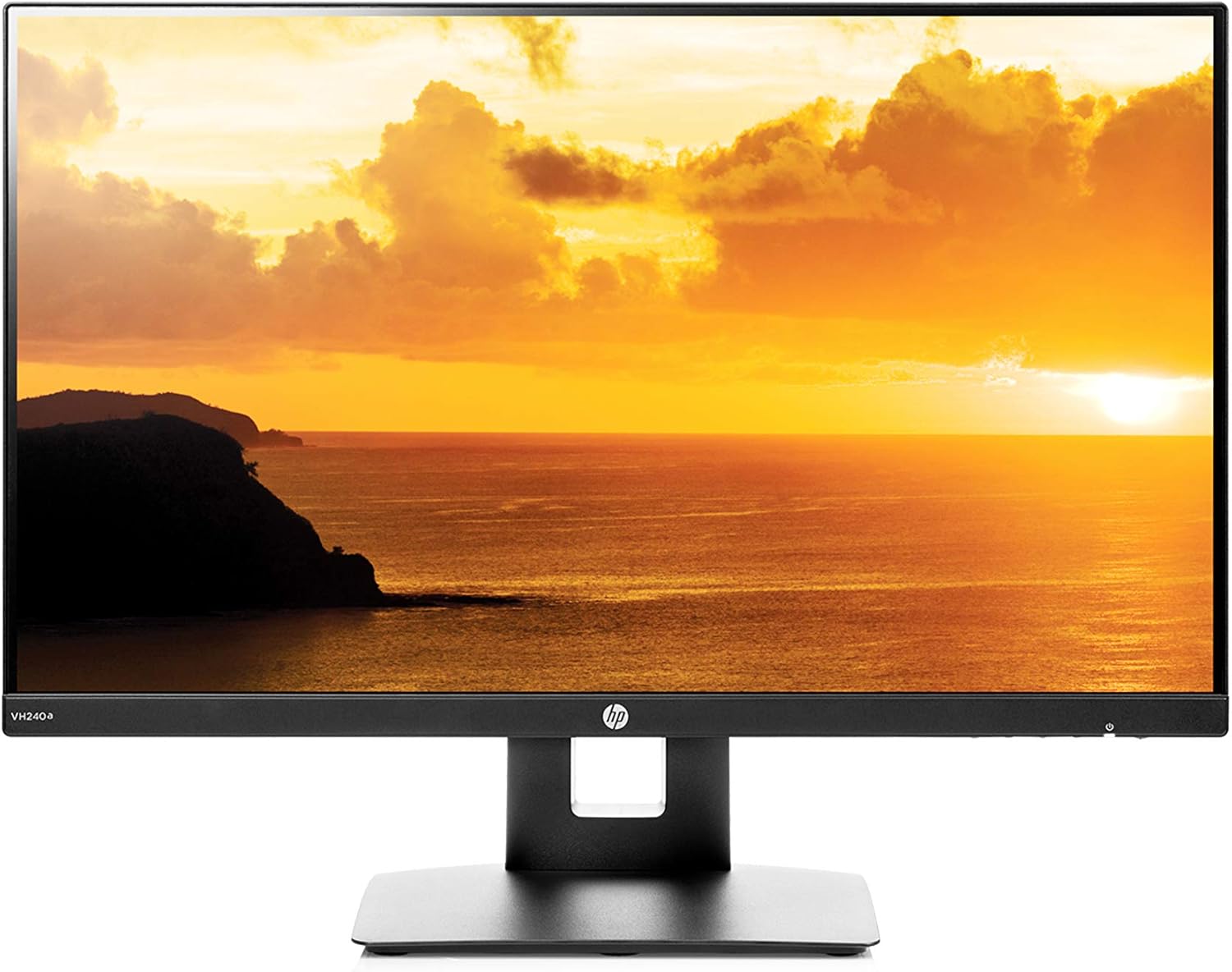

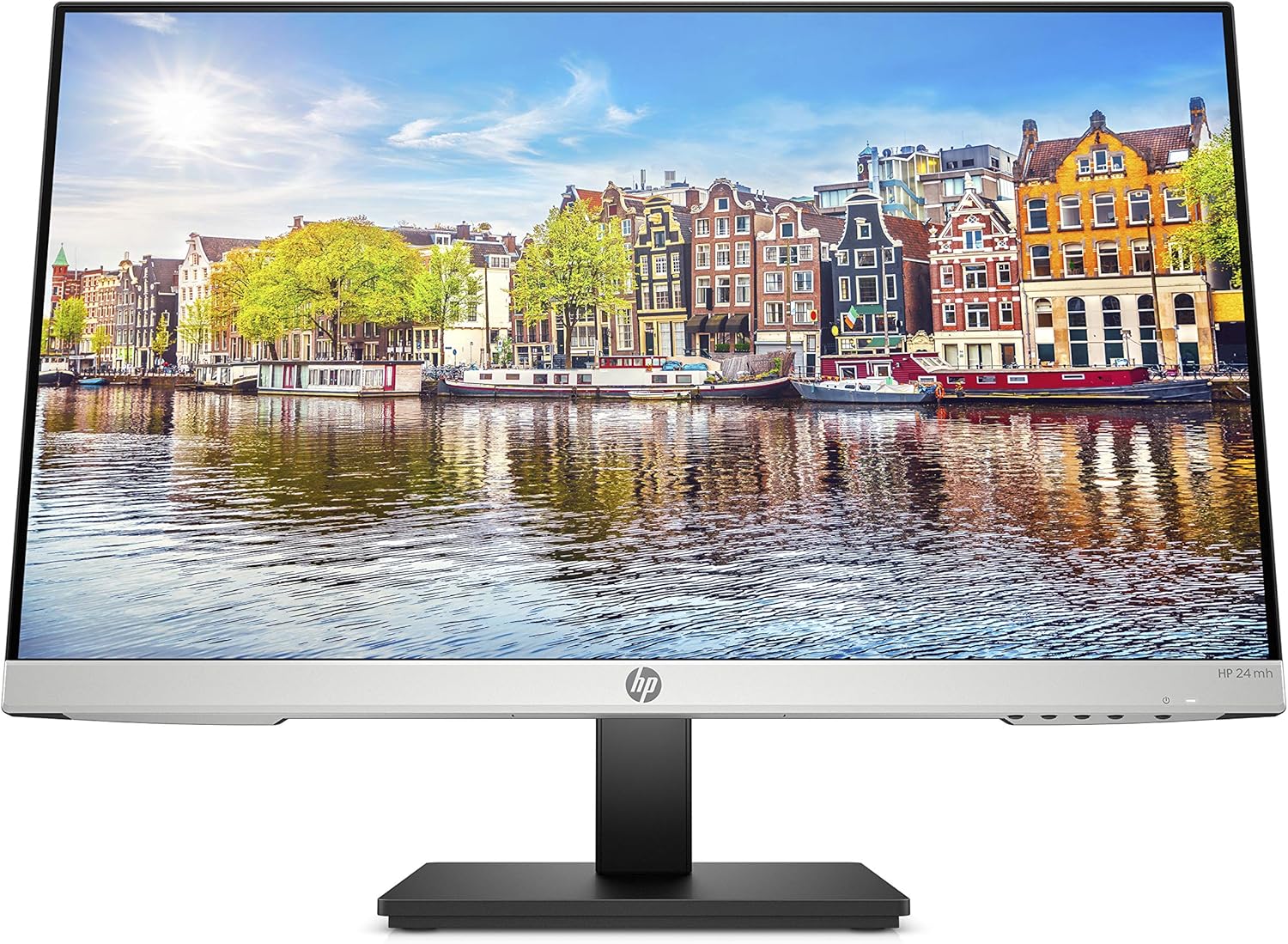
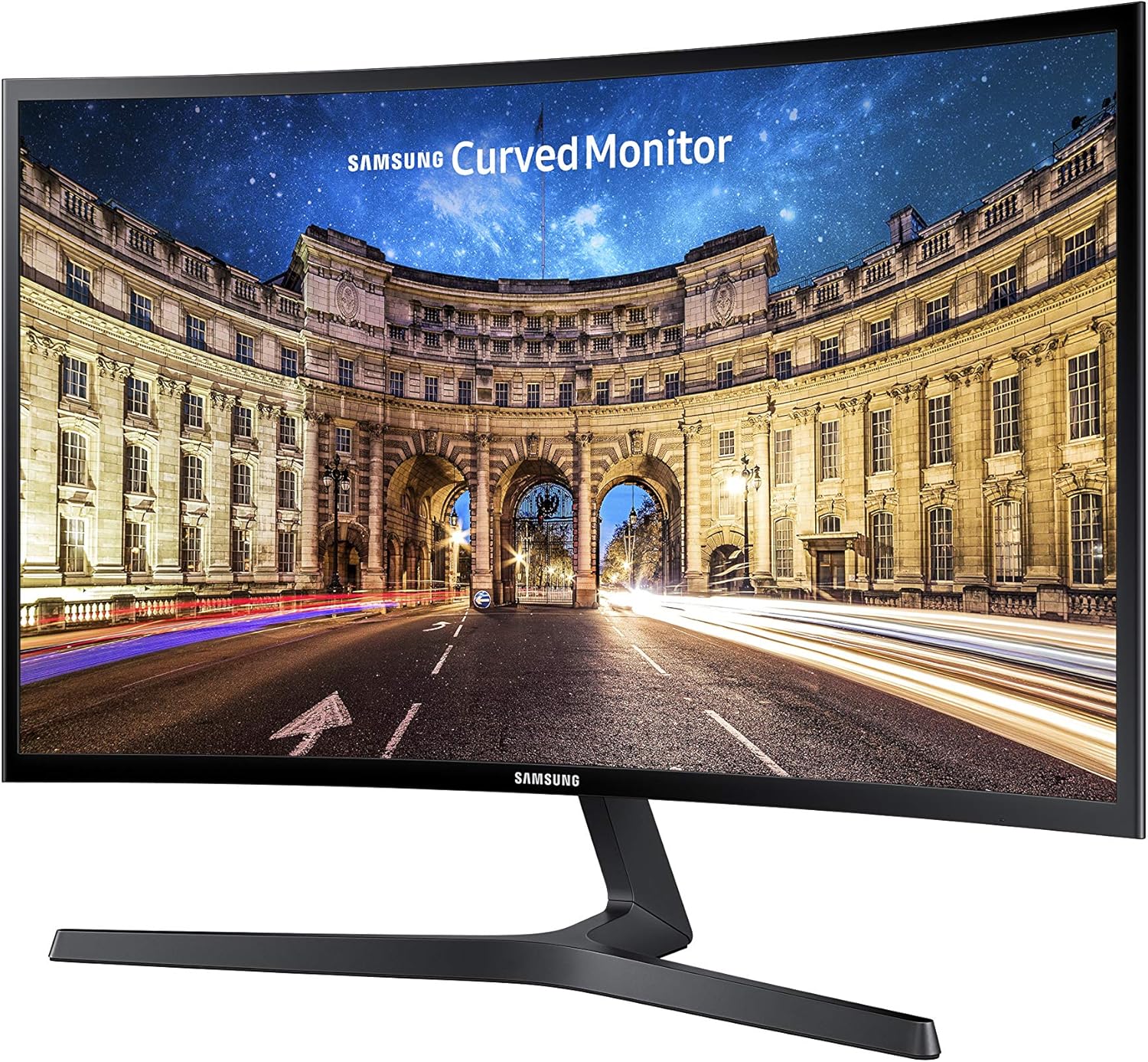


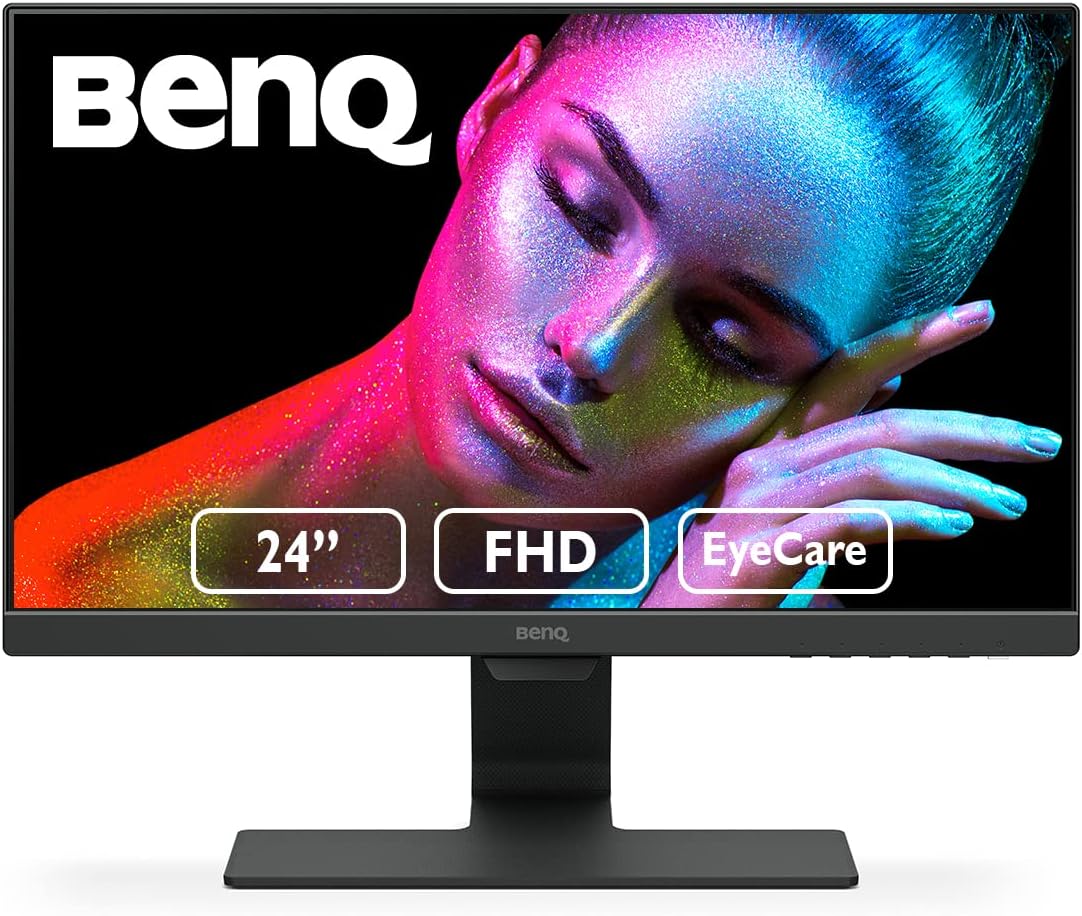


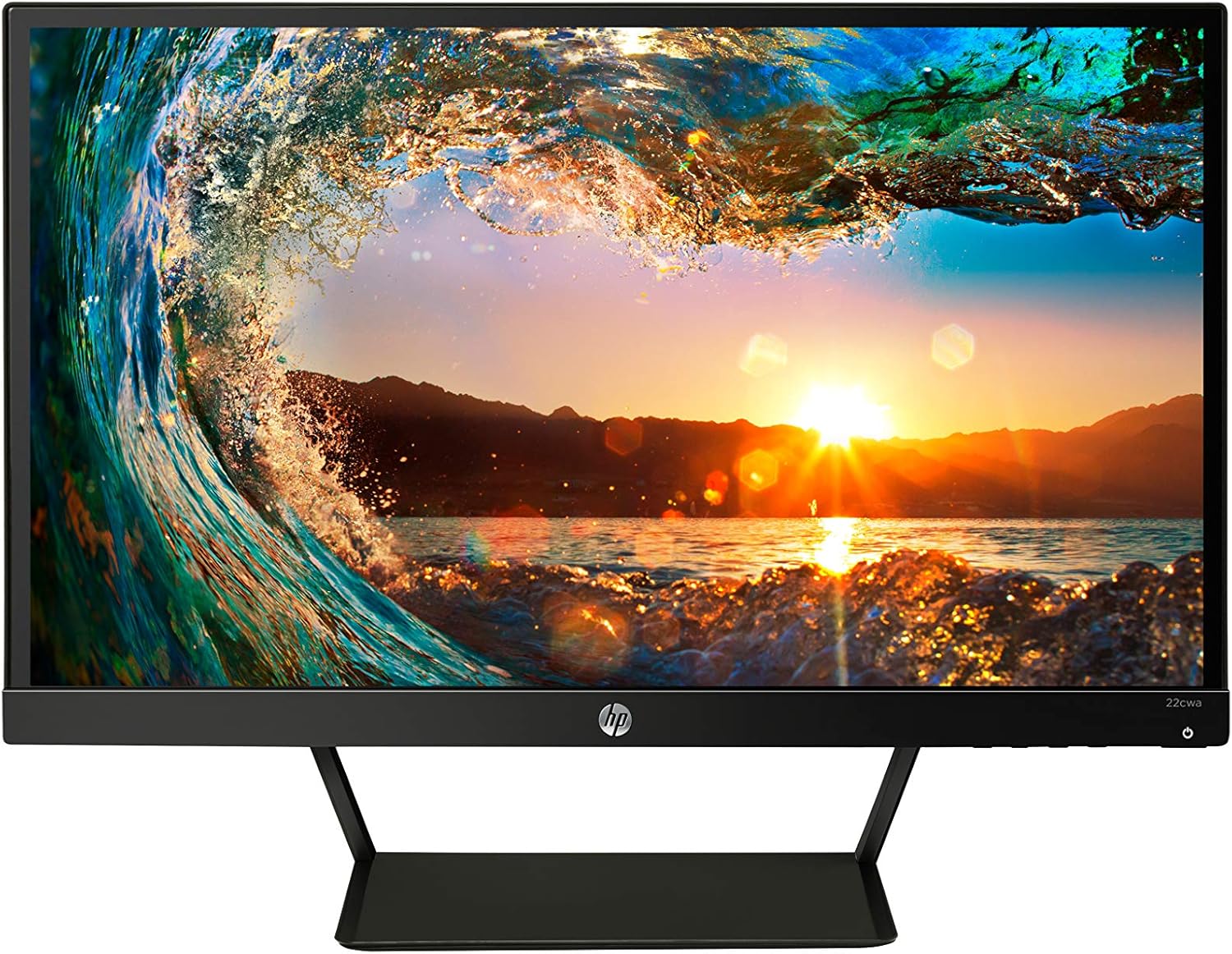

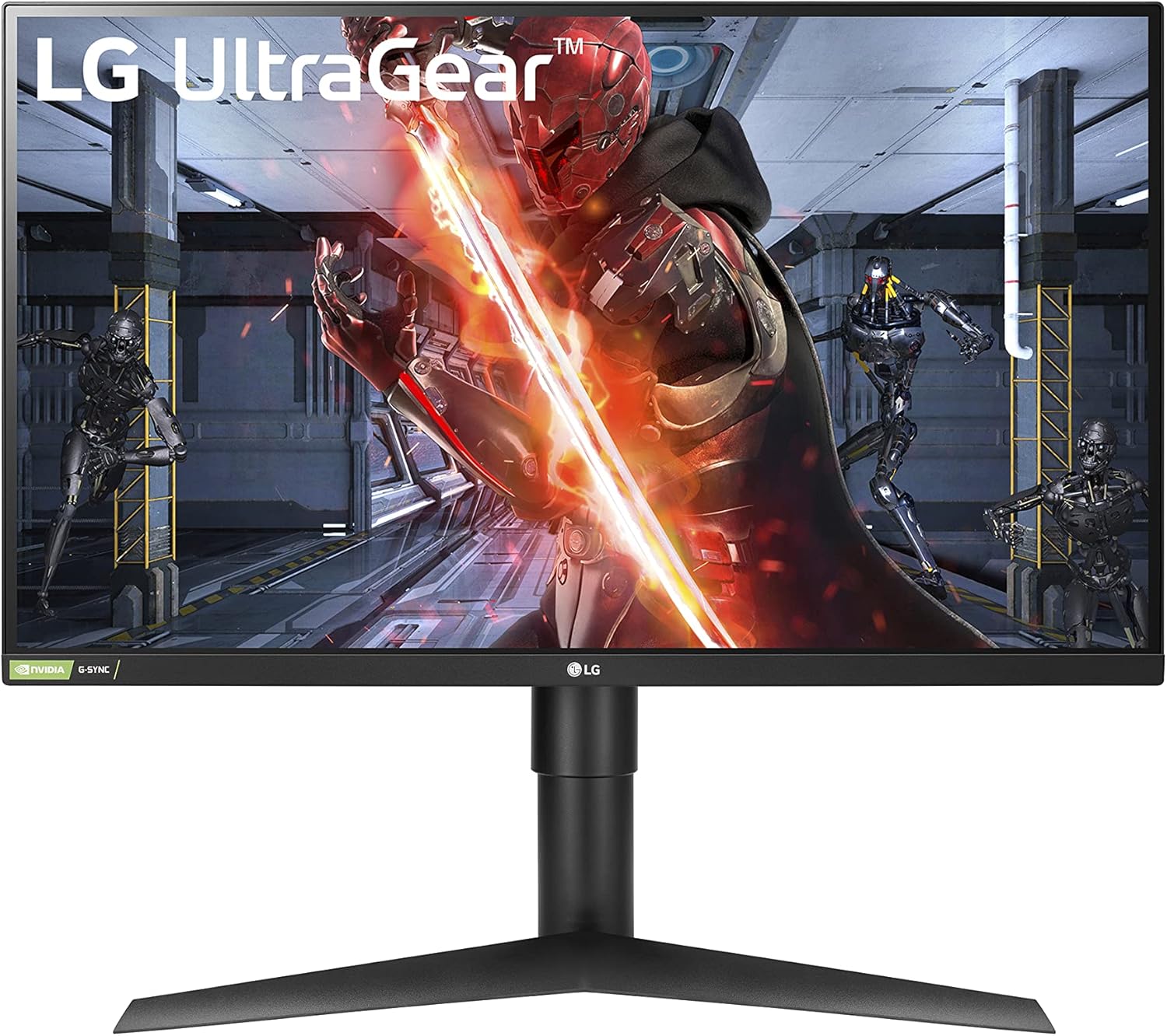


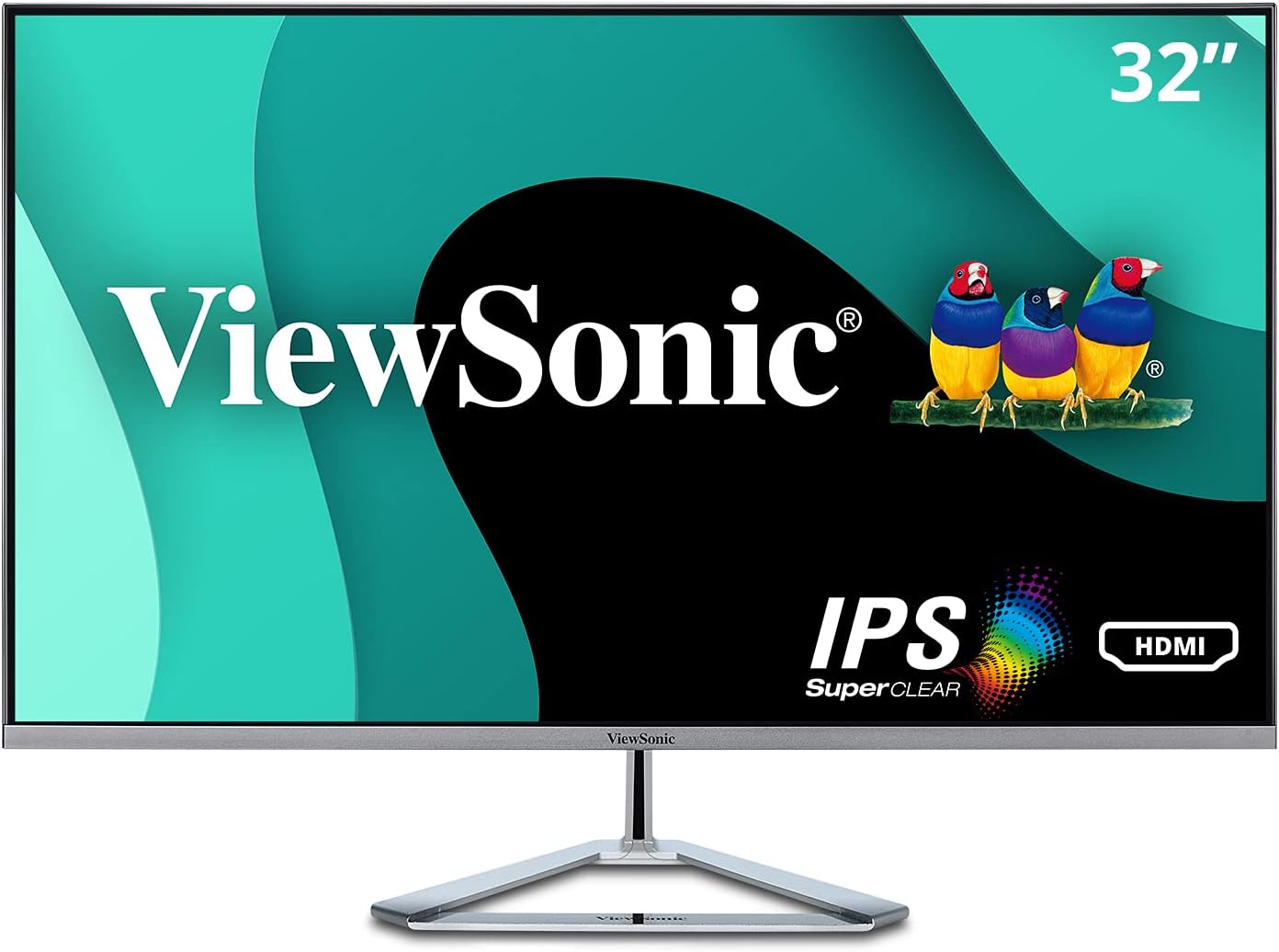

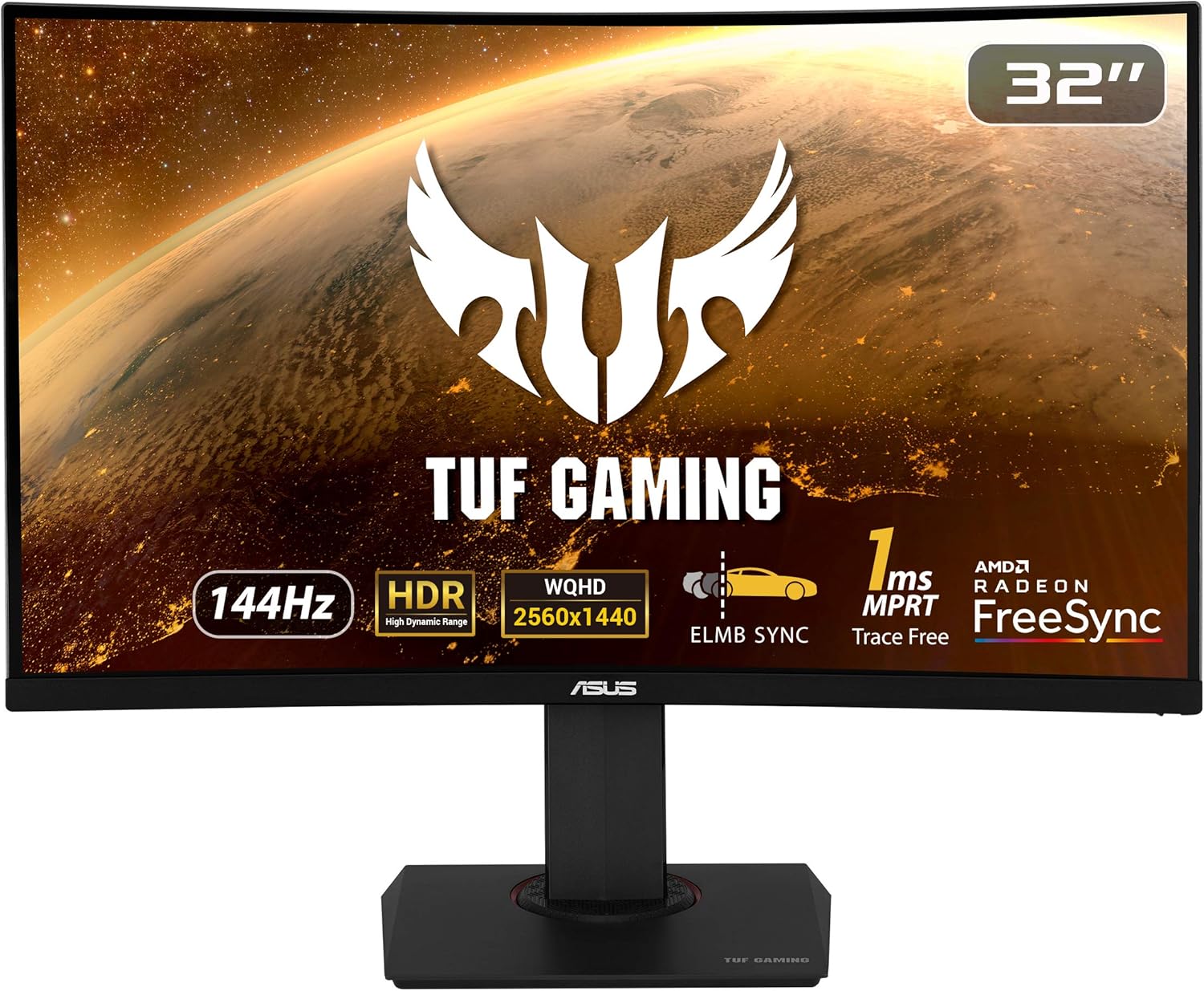
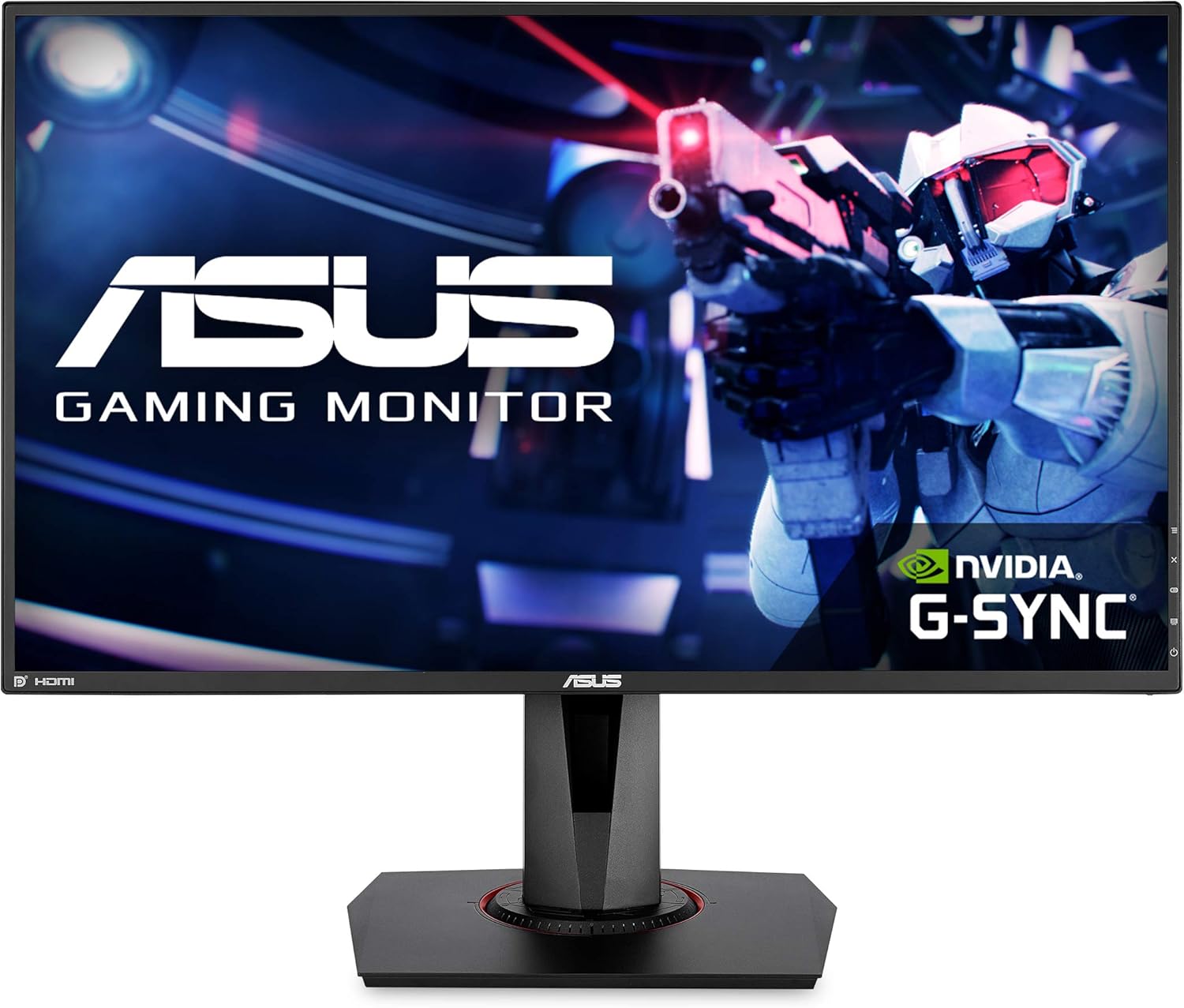

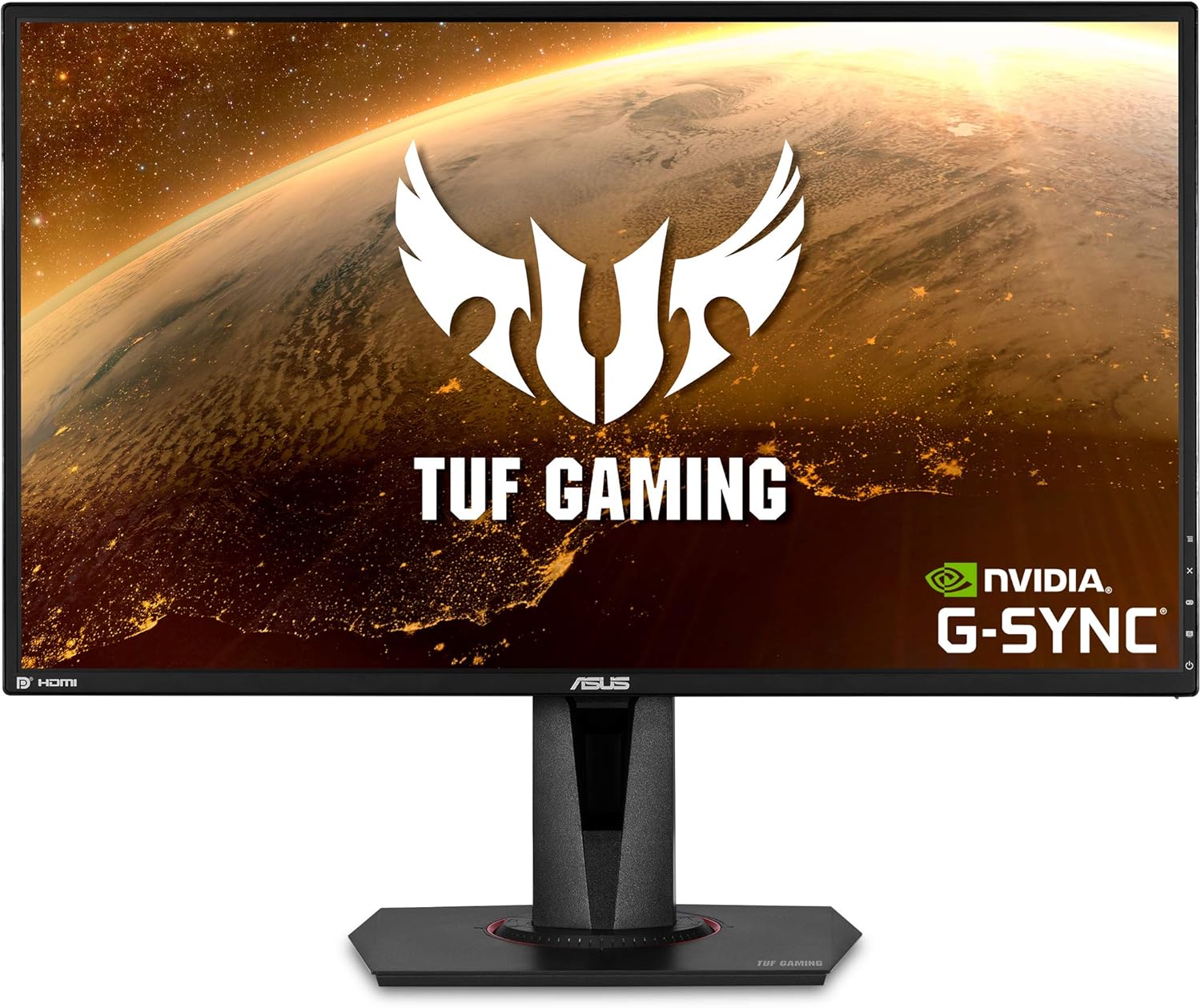

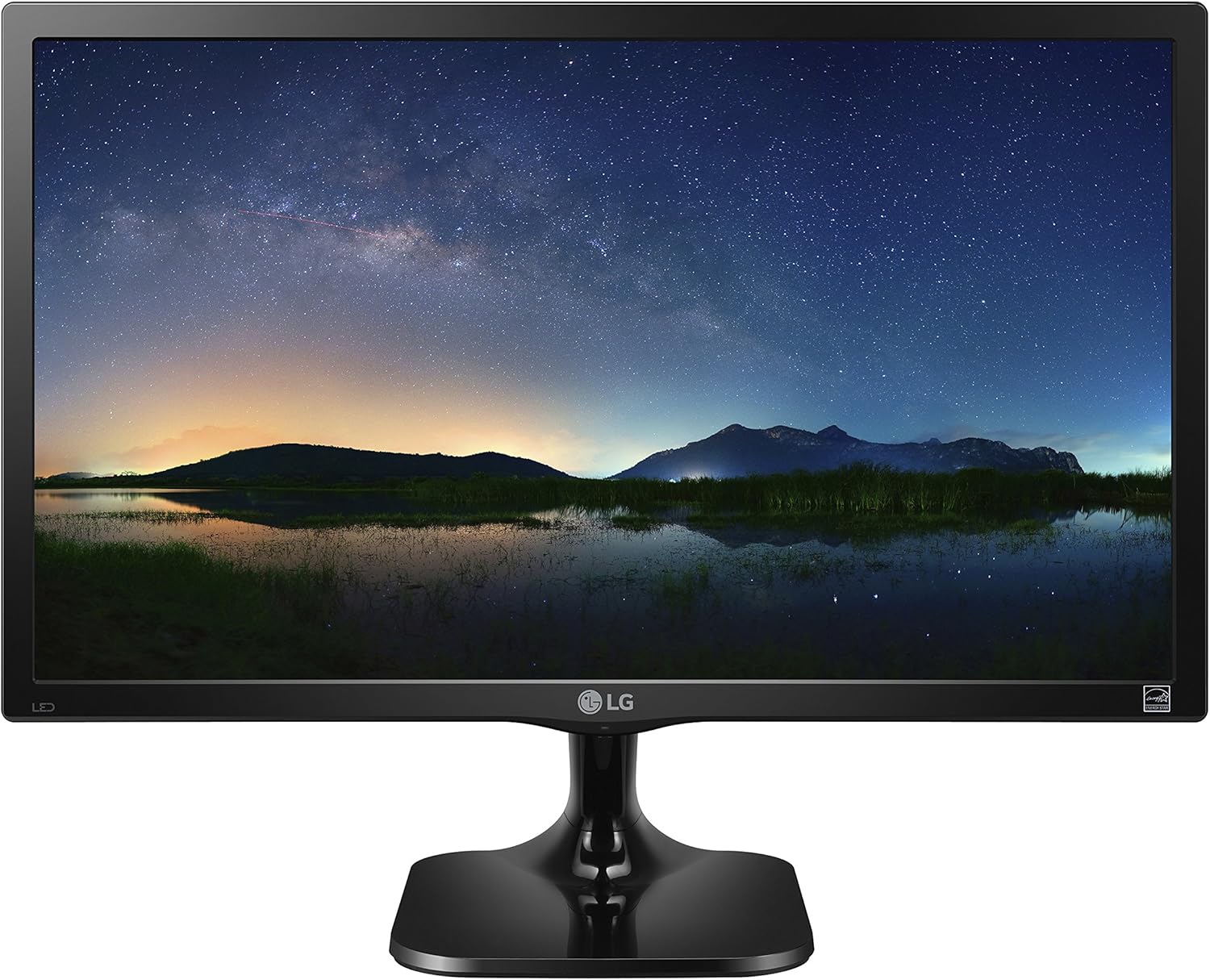
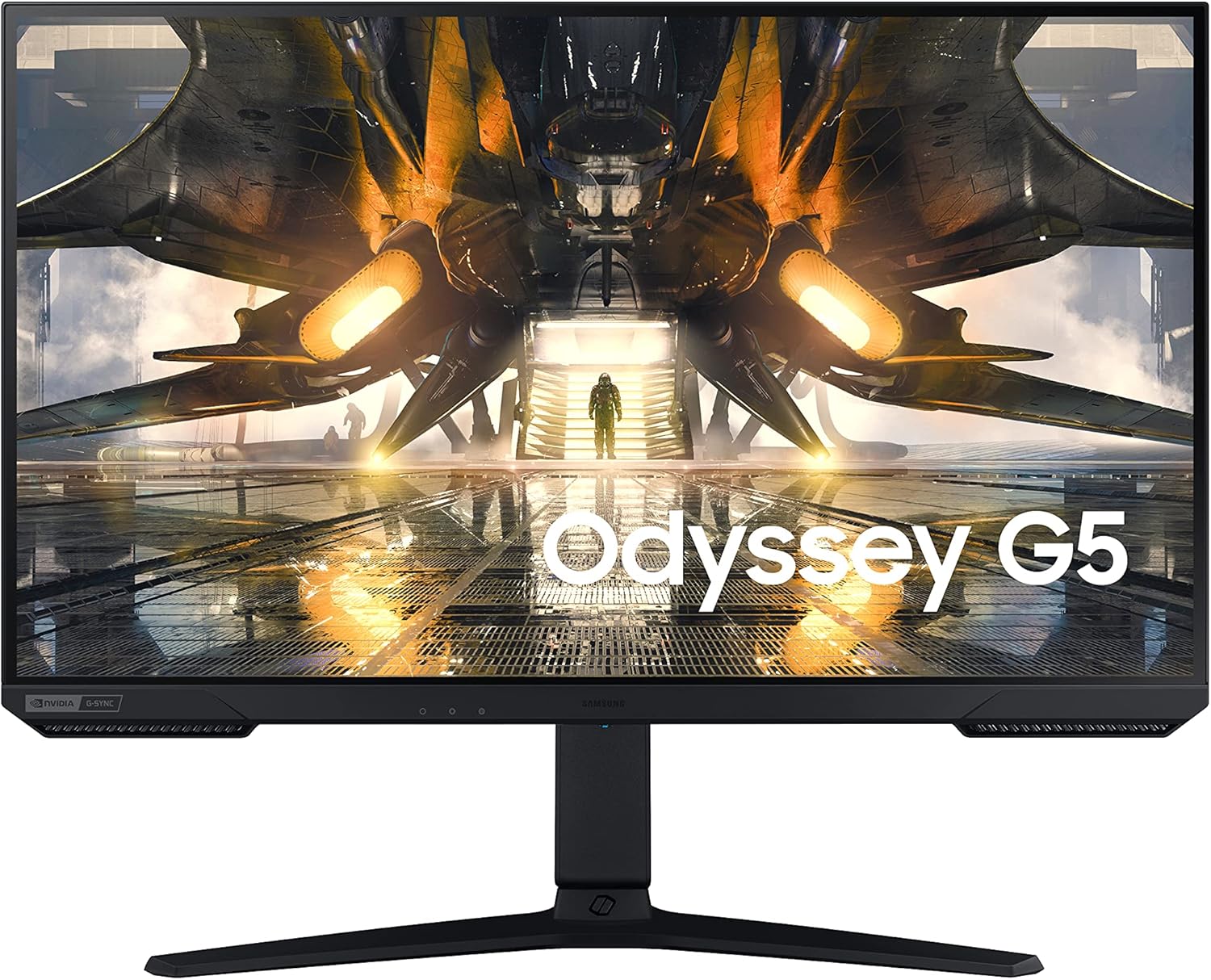
Popular brands in Monitors
A monitor can shape how comfortably and effectively you use a computer, whether you are reading documents, editing images, playing games, or managing several applications at once. The right choice depends on more than screen size: resolution, panel technology, ports, stand adjustments, and compatibility all matter.
K-Catalog brings together monitor options from brands including LG, Dell, Acer, ASUS, Samsung, ViewSonic, AOC, HP, Sceptre, MSI, BenQ, and Viotek. Use the available specifications and features to compare models for your desk and your usual workload.
How to choose a monitor
Start with how the display will be used most often. Office work may benefit from a comfortable size, clear text, an adjustable stand, and connectivity that works with your computer. Gaming can make motion handling and input responsiveness more important, while photo or video work may place greater emphasis on resolution, color capabilities, and viewing consistency.
Also consider your desk, viewing distance, and computer hardware. A larger or higher-resolution display can show more content, but your computer must be able to drive the chosen resolution and refresh rate effectively. If you plan to use more than one screen, check the available desk space and how the monitors will connect to your computer.
Monitor types and use cases
The catalog does not divide monitors into listed subcategories, so comparing by intended use is a practical way to narrow the selection.
- Everyday and office monitors: Look for readable text, comfortable brightness controls, useful viewing angles, and a stand that supports a natural posture. Built-in speakers or USB connectivity may also be useful in a home or office setup.
- Gaming monitors: Compare refresh rate, response time specifications, adaptive-sync support, resolution, and the graphics outputs supported by your computer. A fast display is most useful when the rest of the system can provide suitable frame rates.
- Creative and professional monitors: Resolution, color-related specifications, panel consistency, and connectivity deserve close attention for design, photography, video, and other visual work.
- Ultrawide or large-format displays: These can provide more horizontal workspace for timelines, spreadsheets, and side-by-side windows. Confirm that the desk can accommodate the width and that your computer supports the display configuration.
- Portable or secondary displays: A compact monitor may suit travel, presentations, or an additional screen. Check its power requirements, connection type, and whether your laptop or other source device supports the required video signal.
For other equipment around a computer setup, browse Computer Accessories & Peripherals. Laptop users may also want to compare Laptop Accessories.
Key specifications to compare
Screen size and resolution affect both workspace and image detail. A larger screen is not automatically better if it feels too close or does not fit your desk. Higher resolution can make text and images more detailed, but interface scaling may be needed for comfortable reading.
Panel type can influence contrast, color, viewing angles, and motion behavior. Compare the manufacturer’s specifications rather than assuming one panel type is ideal for every task. Brightness, contrast, color coverage, and surface finish can also affect how the image looks in your room.
Refresh rate and response time are especially relevant for games and fast-moving content. Check how these specifications are measured, and consider whether the connection and computer hardware can support the display’s stated capabilities.
Connectivity should match your computer, console, dock, or other source devices. Review the available video inputs, such as HDMI or DisplayPort where listed, along with USB ports, audio connections, and any power-delivery features. You may need an adapter or a different cable depending on the equipment already in use.
Ergonomics and setup details
A stand with height, tilt, swivel, or pivot adjustment can help position the screen more comfortably. If a monitor supports a separate mounting system, verify the mounting standard and weight requirements before buying an arm or wall mount.
Be sure to check the monitor’s dimensions and weight, including the stand if space is limited. Think about cable routing, ventilation, glare from windows or lamps, and whether the screen will be used in portrait orientation. Features such as low-blue-light modes or flicker-related settings may be worth comparing if you spend long periods reading or working on screen.
For related hardware, Computer Components can help when checking whether a graphics card or other internal component fits your display plans. If you are choosing a complete system, see Computers & Tablets.
Brands represented in the catalog
Monitor listings include LG, Dell, Acer, ASUS, Samsung, ViewSonic, AOC, HP, Sceptre, MSI, BenQ, and Viotek. Each brand may offer displays aimed at different uses and specifications, so compare the individual model details rather than choosing by brand name alone.
Frequently asked questions
What monitor size should I choose?
Choose a size that fits your desk and viewing distance while providing enough workspace for your tasks. Larger screens can be useful for multitasking, but they need adequate room and comfortable positioning.
Is higher resolution always better?
Not always. Higher resolution can improve detail and workspace, but it may require more graphics performance and can make interface elements appear smaller without scaling.
Which monitor features matter most for gaming?
Compare refresh rate, response time, adaptive-sync support, resolution, input connections, and whether your computer can take advantage of those specifications.
What should I check for a work monitor?
Prioritize readable text, suitable size and resolution, comfortable brightness, useful adjustment options, and ports that match your computer or docking setup.
Do I need a monitor with built-in speakers?
Built-in speakers can simplify a basic setup, but they are not essential if you already use headphones or separate speakers. Compare audio features according to how you plan to use the display.
Can I connect a monitor to a laptop?
Often, yes, but compatibility depends on the laptop’s video output, the monitor’s inputs, cable or adapter requirements, and whether the laptop supports the desired resolution and refresh rate.