

Computer Components
Compare computer components by compatibility, performance, cooling, and upgrade needs. Explore specifications and features to plan a new build or upgrade an existing computer.
6,696 products in catalog
6,696 results
Filters

Corsair
Corsair Vengeance LPX 128GB (4x32GB) DDR4 3200(PC4-28800) C18 1.35V Desktop Memory - Black
See current price


Crucial
Crucial 4GB Single DDR4 2400 MT/s (PC4-19200) SR X16 SODIMM 260-Pin Memory - CT4G4SFS624A
See current price


Crucial
Crucial RAM 16GB Kit (2x8GB) DDR3 1600 MHz CL11 Laptop Memory CT2KIT102464BF160B
See current price
Crucial
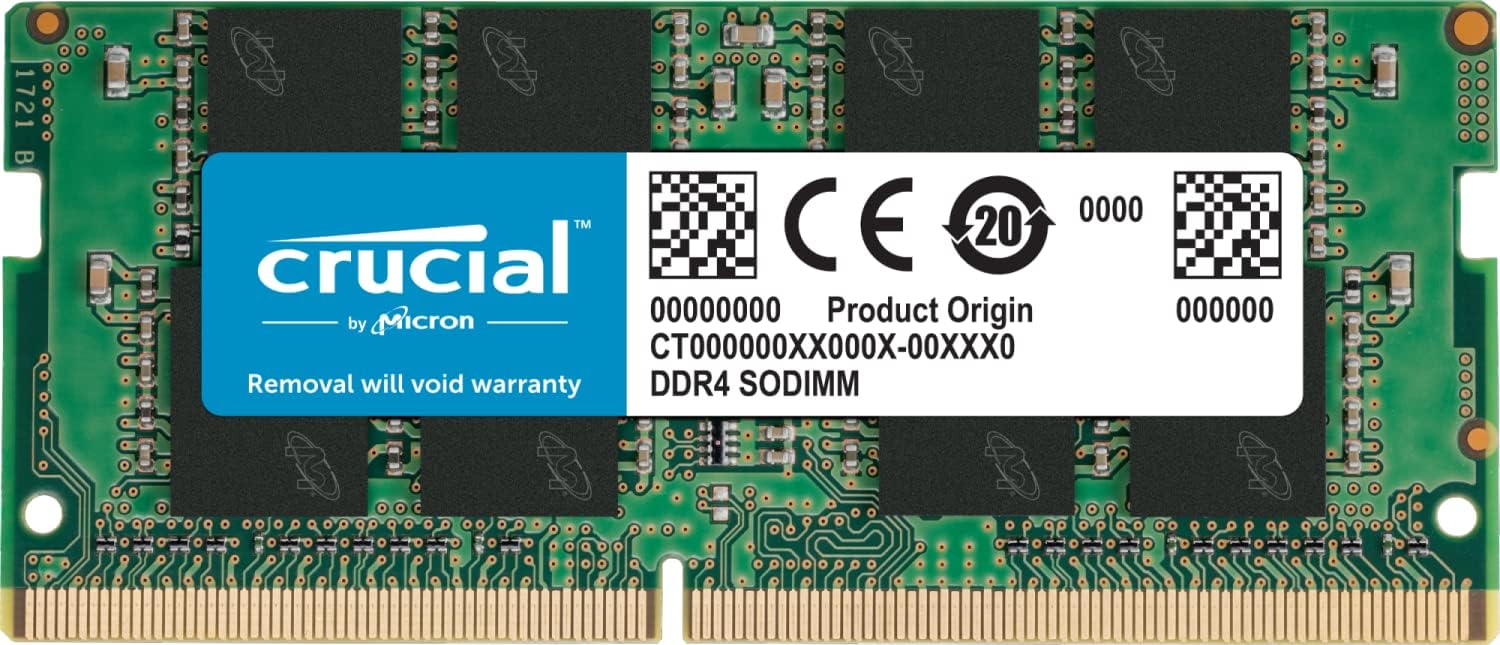
Crucial RAM 32GB DDR4 3200MHz CL22 (or 2933MHz or 2666MHz) Laptop Memory CT32G4SFD832A
See current price


Crucial
Crucial 8GB Single DDR4 2400 MT/S (PC4-19200) SR x8 SODIMM 260-Pin Memory - CT8G4SFS824A
See current price


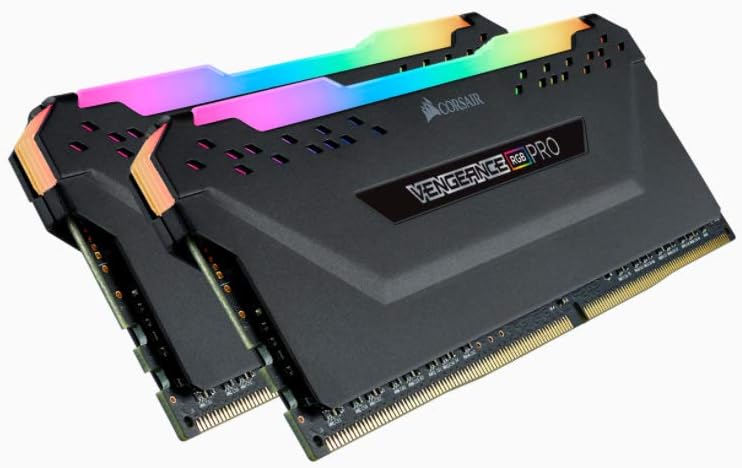
Corsair
Corsair Vengeance RGB Pro 32GB (2x16GB) DDR4 3200 (PC4-25600) C16 Desktop memory – Black
See current price

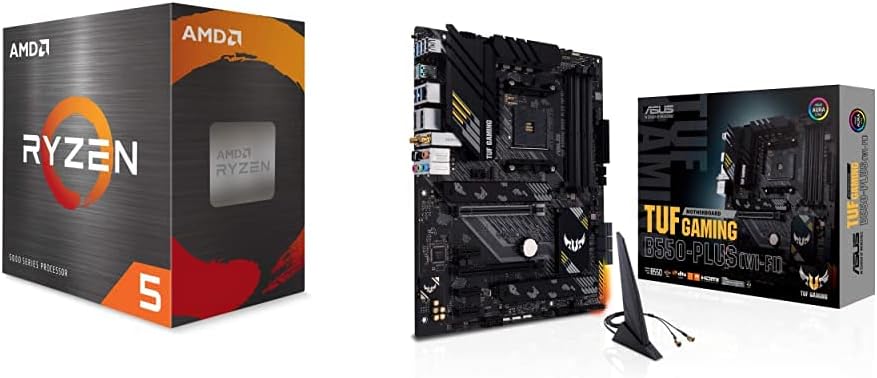

Popular brands in Computer Components
Computer components form the internal hardware that determines how a desktop computer performs, connects, stores files, and handles demanding software. Whether you are building a system from separate parts or replacing a component, the right choice depends on compatibility as much as headline performance.
Use this catalog to compare specifications and features across processors, graphics hardware, memory, storage, cooling, power, and other internal parts. The goal is to assemble components that work together reliably rather than choosing each part in isolation.
How to choose computer components
Start by defining the computer’s main purpose. Office work, study, media use, gaming, creative applications, and demanding professional software can call for very different hardware priorities. A component that is appropriate for a compact everyday computer may not be suitable for a high-performance desktop.
Before comparing individual products, check the existing or planned system:
- Motherboard compatibility: Confirm the socket, chipset support, memory type, expansion slots, and available connections.
- Physical fit: Compare the component’s dimensions with the case, available clearance, and neighboring hardware.
- Power requirements: Make sure the power supply can support the system and has the necessary connectors.
- Thermal needs: Higher-performance components can require stronger airflow or more capable cooling.
- Upgrade plans: Leave enough room for future memory, storage, graphics, or expansion upgrades if the system will grow over time.
A complete build also needs a balance between components. A powerful processor paired with limited memory, insufficient cooling, or slow storage may not deliver the experience expected from the system as a whole.
Main types of computer components
Computer components cover several distinct hardware groups. Understanding what each one does makes it easier to narrow the catalog and compare relevant specifications.
- Processors: The central processing unit handles general computing tasks. Compare the processor’s platform compatibility, core and thread configuration, thermal requirements, integrated graphics where applicable, and intended workload.
- Graphics hardware: A graphics processor handles visual output and graphics-intensive applications. Consider display support, available connections, physical dimensions, cooling design, and power requirements.
- Motherboards: The motherboard connects the processor, memory, storage, expansion cards, and external connections. Its socket, chipset, form factor, expansion layout, and connection options determine which other components can be installed.
- Memory: System memory affects multitasking and application responsiveness. Match the memory type and supported configuration to the motherboard, while considering capacity, speed, and the number of available slots.
- Storage: Internal solid-state and hard-disk storage provide space for the operating system, applications, and files. Compare the interface, physical format, capacity, endurance information when provided, and intended use.
- Power supplies: A power supply converts electricity for the computer’s internal hardware. Compare output capability, connector availability, physical format, efficiency information, and protection features.
- Cooling: Air coolers, liquid cooling systems, fans, and related hardware help manage heat. Check socket support, cooler clearance, radiator or fan fit, noise considerations, and the case’s airflow layout.
- Expansion and replacement parts: Internal adapters, cables, brackets, and other components can add connectivity or help fit hardware into a particular build.
For related external equipment, browse Computer Accessories & Peripherals. Storage products may also overlap with the broader Data Storage category.
Specifications and features to compare
Compatibility comes first. For a processor, verify the motherboard socket and supported platform. For memory, check the motherboard’s memory standard and supported configuration. For storage, confirm whether the system accepts the required interface and physical format. For graphics hardware, examine the expansion slot, power connectors, and case clearance.
Performance specifications should be judged in context. Processor frequency, core configuration, memory speed, storage interface, and graphics capabilities can all matter, but no single specification describes the entire system. Look for hardware that matches the applications you plan to run rather than paying attention to one prominent figure alone.
Thermals and noise are important for sustained workloads. Compare cooler design, fan arrangement, heat-dissipation features, and control options. A case with restricted airflow may need a different cooling approach than a roomier build with several intake and exhaust positions.
Connections and expandability can affect long-term usefulness. Review USB and display options, network connections, storage connectors, expansion slots, and internal headers. Check whether the motherboard or expansion hardware provides the ports your current devices require.
Physical design matters during installation. Compare form factor, length, height, thickness, cable exit points, and mounting requirements. Large graphics cards and coolers can limit the space available for other parts, while compact systems may require specifically sized hardware.
Brands represented in the catalog
The Computer Components catalog includes products from Corsair, ASUS, MSI, Intel, Gigabyte, Noctua, EVGA, Samsung, ARCTIC, Cooler Master, AMD, and Crucial. These brands appear across different component types, so the most useful comparison is still the product’s specifications, compatibility information, design, and intended use.
Brand availability can help narrow a search, especially when matching components within an existing system. However, confirm the exact model specifications and platform support before making a selection, since products from the same brand can serve very different purposes.
Build and upgrade tips
When upgrading, identify the current component and the limitation you want to address. More memory may help with multitasking, while faster storage can improve file access and system responsiveness. A graphics upgrade may require a stronger power supply or additional case clearance, and a processor upgrade may require a motherboard firmware update or a different cooler.
Keep installation and maintenance in mind. Route cables so they do not obstruct fans, install cooling hardware according to the manufacturer’s instructions, and keep air intakes clear of dust. Handle memory, processors, expansion cards, and storage drives carefully, and avoid forcing a connector or component into an incompatible slot.
For complete computers rather than individual internal parts, compare Computers & Tablets. Networking equipment is covered in Networking Products, while accessories intended for portable computers can be found under Laptop Accessories and Tablet Accessories.
Frequently asked questions
What should be chosen first when building a computer?
Begin with the intended workload and the processor or platform. The motherboard, memory, cooling, and other parts must support that platform, so selecting a compatible foundation helps guide the rest of the build.
How can component compatibility be checked?
Compare the socket, chipset support, memory standard, expansion slots, interfaces, power connectors, and physical dimensions. Also check the case clearance and the power supply’s available capacity and connectors.
Is more powerful hardware always the better choice?
Not necessarily. Extra performance can increase power use, heat, cost, and cooling requirements. Choose specifications that suit the software, games, or tasks the computer will actually run.
What matters most when upgrading a desktop?
The best upgrade depends on the current bottleneck. Check whether the system needs more memory, faster storage, stronger graphics, improved cooling, or a newer processor, then verify that the rest of the computer supports the replacement.
Do cooling components need to match the processor?
Cooling hardware must support the processor’s socket and thermal requirements, and it must fit the case and motherboard layout. Compare mounting hardware, clearance, airflow, and installation requirements before choosing.
Where can shoppers compare current product options?
K-Catalog provides specifications and feature information for comparison. After narrowing the choices, shoppers can follow through to Amazon to check the current product details and availability.