

Computer Accessories & Peripherals
Compare computer accessories and peripherals by compatibility, connection type, design, and everyday function. Browse options for work, gaming, home offices, travel, and upgrades.
21,902 products in catalog
21,902 results
Filters

SanDisk
SanDisk 32GB 2-Pack Ultra MicroSDHC UHS-I Memory Card (2x32GB) - SDSQUAR-032G-GN6MT
See current price



SanDisk
SanDisk 128GB Extreme PRO SDXC UHS-I Card - C10, U3, V30, 4K UHD, SD Card - SDSDXXY-128G-GN4IN
See current price
![JSAUX USB-C to USB A Cable 3.1A Fast Charging [2-Pack 6.6ft], USB Type C Charger Cord Compatible with Samsung Galaxy S10 S9 S8 S20 Plus A51 A12 A11, Note 10 9 8, PS5 Controller USB C Charger-Green](https://m.media-amazon.com/images/I/81QY6eXN75L._AC_SL1500_.jpg)

Amazon Basics
Amazon Basics Nylon Braided Lightning to USB A Cable, MFi Certified Apple iPhone Charger, Silver, 6-Foot - Pack of 10
See current price
Amazon Basics
Amazon Basics Nylon Braided Lightning to USB A Cable, MFi Certified Apple iPhone Charger, Silver, 6-Foot
See current price
Amazon Basics
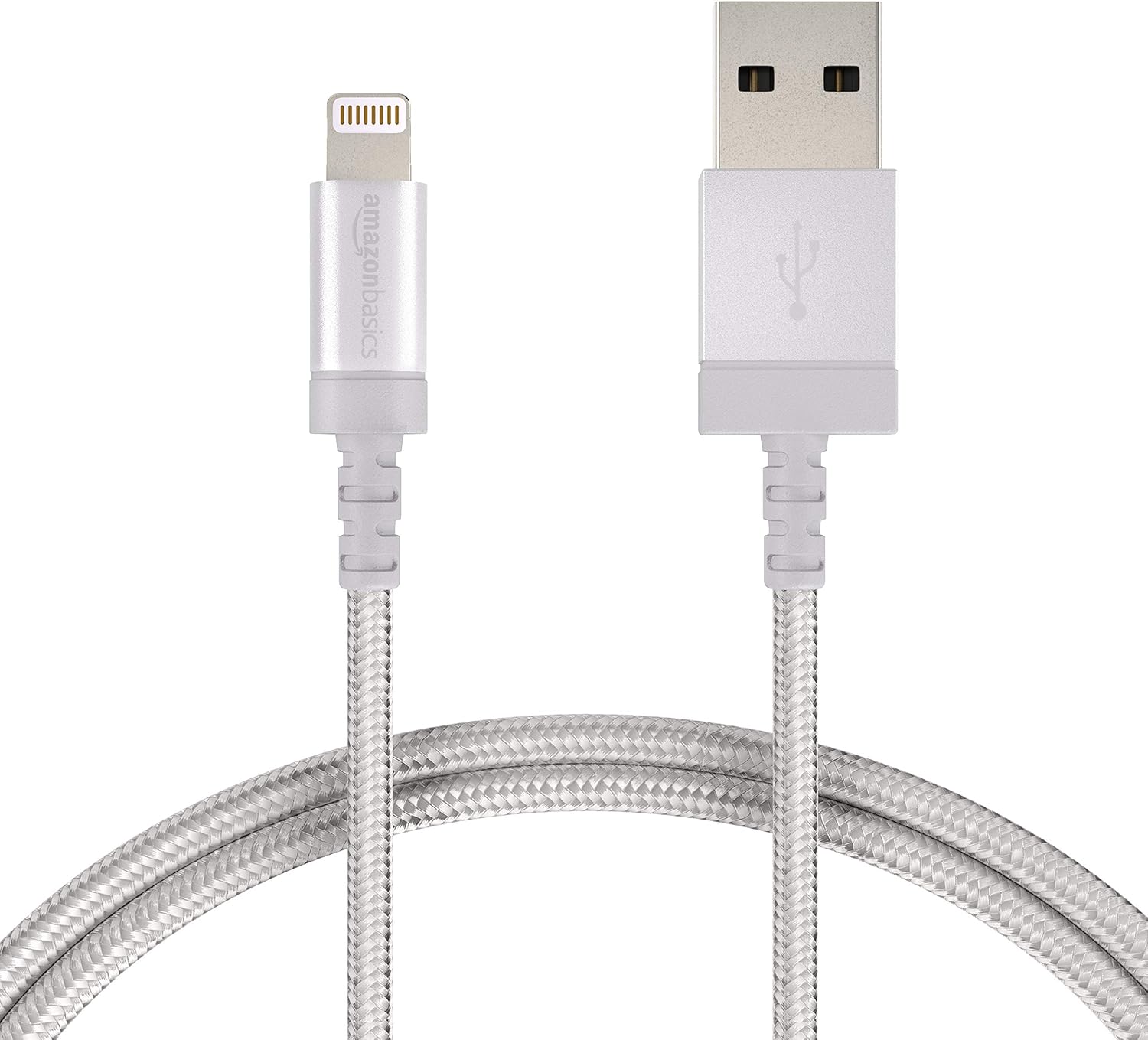
Amazon Basics Nylon Braided Lightning to USB A Cable, MFi Certified Apple iPhone Charger, Silver, 3-Foot - Pack of 10
See current price
Amazon Basics
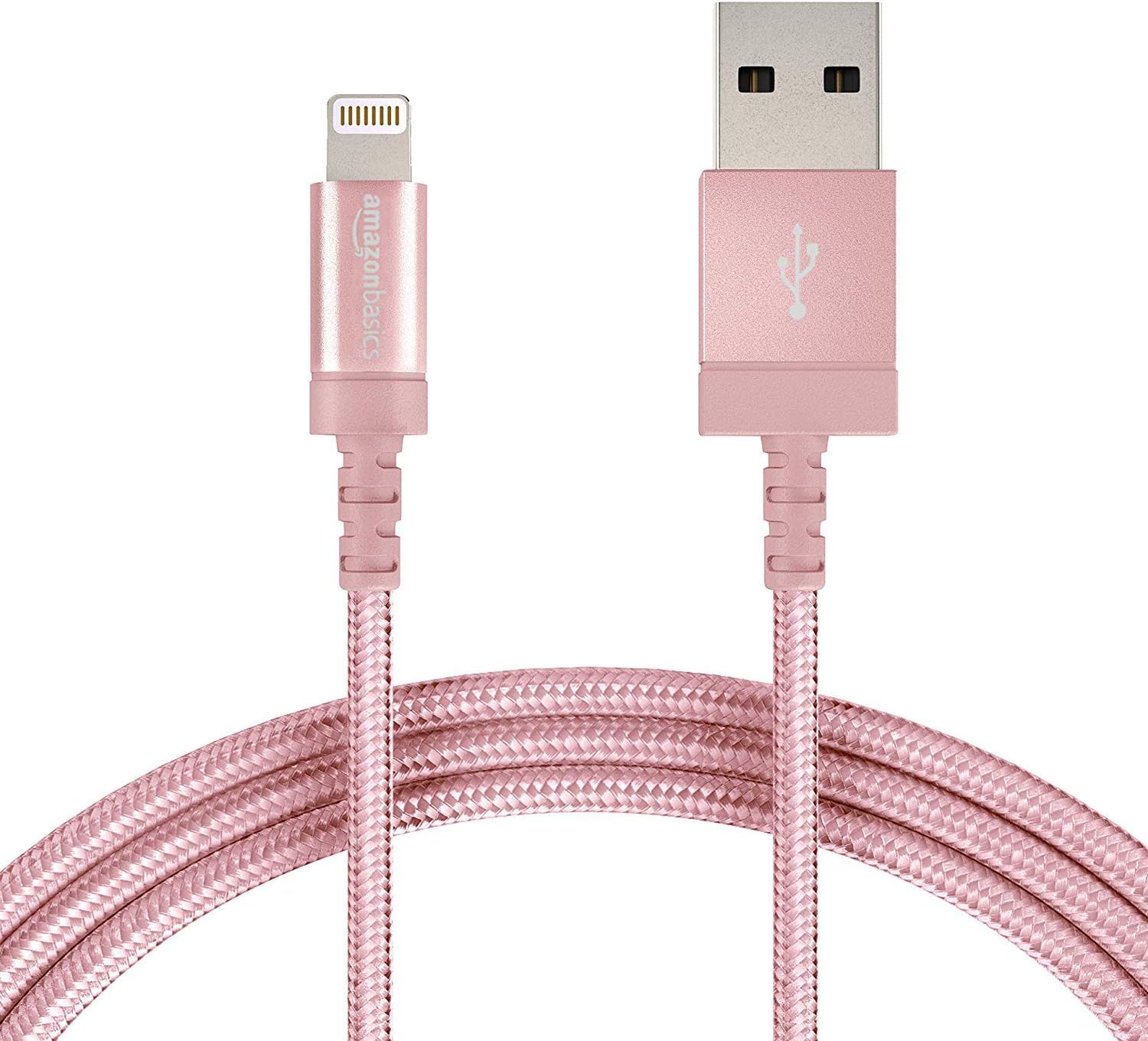
Amazon Basics Nylon Braided Lightning to USB A Cable, MFi Certified Apple iPhone Charger, Rose Gold, 6-Foot - Pack of 10
See current price

Amazon Basics
Amazon Basics Nylon Braided Lightning to USB A Cable, MFi Certified Apple iPhone Charger, Gold, 6-Foot - Pack of 10
See current price

Amazon Basics
Amazon Basics Nylon Braided Lightning to USB A Cable, MFi Certified Apple iPhone Charger, Dark Gray, 3-Foot
See current price
Amazon Basics
Amazon Basics Nylon Braided Lightning to USB A Cable, MFi Certified Apple iPhone Charger, Dark Gray, 3-Foot - 10-Pack
See current price
Amazon Basics
Amazon Basics Nylon Braided Lightning to USB A Cable, MFi Certified Apple iPhone Charger, Silver, 3-Foot
See current price

Amazon Basics
Amazon Basics Nylon Braided Lightning to USB A Cable, MFi Certified Apple iPhone Charger, Rose Gold, 3-Foot
See current price
Amazon Basics
Amazon Basics Nylon Braided Lightning to USB A Cable, MFi Certified Apple iPhone Charger, Gold, 6-Foot
See current price
Amazon Basics
Amazon Basics Nylon Braided Lightning to USB A Cable, MFi Certified Apple iPhone Charger, Dark Gray, 6-Foot - Pack of 10
See current price
Amazon Basics
Amazon Basics Nylon Braided Lightning to USB A Cable, MFi Certified Apple iPhone Charger, Dark Gray, 6-Foot
See current price


Samsung
64GB EVO Select Memory Card and Sabrent SuperSpeed 2-Slot USB 3.0 Flash Memory Card Reader
See current price

Amazon Basics
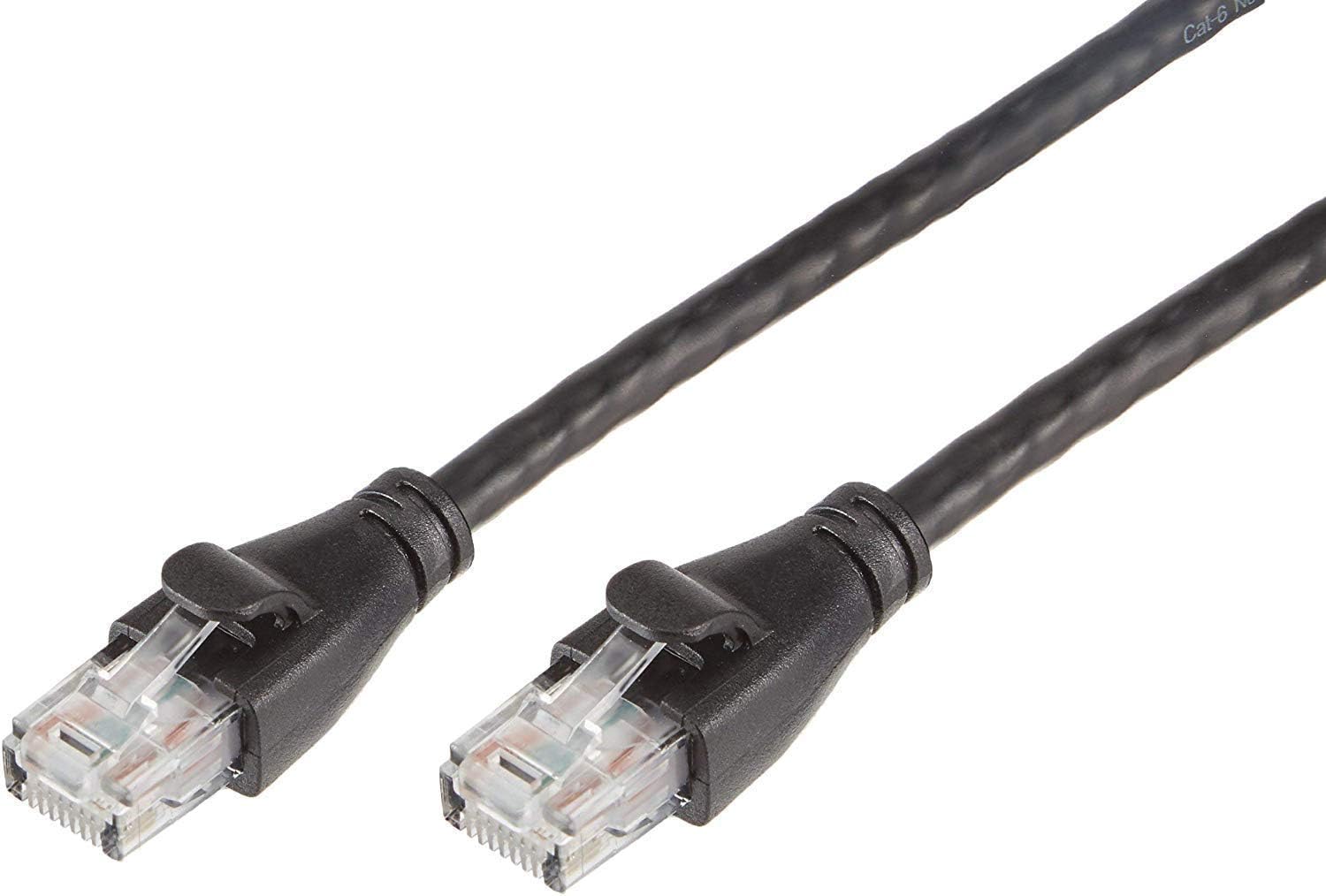
Amazon Basics 5-Pack RJ45 Cat 6 Ethernet Patch Cable, 1Gpbs Transfer Speed, Gold-Plated Connectors, 5 Foot, Black
See current price
Popular brands in Computer Accessories & Peripherals
Computer accessories and peripherals can shape how a computer feels and functions day to day. The right keyboard, mouse, webcam, hub, cable, or stand can improve comfort, simplify connections, and help organize a workspace without replacing the computer itself.
This category brings together a broad selection of accessories for desktop and laptop setups. Start by identifying the problem you want to solve, then compare compatibility, ports, power requirements, size, and the features that matter most for your routine.
How to choose computer accessories
Begin with your computer and workspace. A desktop setup may benefit from a full-size keyboard, an ergonomic mouse, speakers, a webcam, or cable-management accessories. A laptop user may need a dock, USB hub, external keyboard, monitor stand, protective case, or travel-friendly charger.
Before selecting an accessory, check:
- Compatibility: Confirm the operating system, device type, supported ports, and any required software.
- Connection: Compare USB, USB-C, HDMI, DisplayPort, Bluetooth, wireless receivers, and other connection methods as appropriate.
- Power: Some peripherals draw power from the computer, while others need a wall adapter, battery, or separate power source.
- Workspace fit: Consider the available desk area, cable length, portability, and how the accessory will be stored.
- Daily use: Features useful for occasional home use may differ from those needed for extended work, creative tasks, gaming, or travel.
If an accessory will be used for long periods, comfort and adjustability deserve as much attention as technical specifications. For equipment shared by several people, simple setup and broad compatibility may be more important than specialized controls.
Common types of computer peripherals
Computer accessories cover both input and output devices as well as products that connect, protect, or organize equipment. Common options include:
- Keyboards and mice: Compare layout, key style, size, hand fit, button controls, and wired or wireless operation. Compact designs can suit smaller desks or travel, while full-size layouts may be more convenient for frequent data entry.
- Webcams and microphones: Look at image quality, framing, built-in microphones, privacy features, mounting options, and software compatibility for video calls or streaming.
- USB hubs and docking accessories: These can expand the connections available on a laptop or compact computer. Check the host connection, supported displays, data-transfer capabilities, charging support, and the number and type of ports.
- Cables and adapters: Match the connector at both ends and verify what the cable supports. A cable that fits physically may not support the desired display output, charging performance, or data function.
- Stands and mounts: Monitor stands, laptop stands, and mounting hardware can improve viewing position and free desk space. Confirm device dimensions, weight support, adjustment range, and mounting compatibility.
- Audio and media accessories: Headsets, speakers, audio adapters, and related products vary in connection type, microphone design, controls, and intended listening environment.
- Protection and organization: Cases, sleeves, cable organizers, screen accessories, and cleaning tools can help with transport and workspace maintenance. Fit and material details are especially important for protective products.
For products that are central to your setup, it can help to compare both the basic specifications and the physical design. A technically compatible product may still be inconvenient if it occupies too much space, has an awkward cable arrangement, or lacks the controls you use most.
Related computer categories
Some accessories are grouped separately because they are designed for a particular device or function. Explore Laptop Accessories for products intended to expand, protect, or improve portable computers. For touch-focused devices, Tablet Accessories may be a better starting point.
When the goal is to upgrade the computer itself, browse Computer Components rather than peripheral accessories. The broader Computers & Tablets category can help when comparing complete devices.
Accessories that connect multiple devices or extend a network may fit better under Networking Products. For memory cards, external drives, and other file-related equipment, see Data Storage. You can also return to the broader Computers & Accessories category when comparing adjacent product areas.
Key specifications to compare
Specifications differ substantially between accessory types, but several details are useful across the category.
Connection and compatibility should be checked first. Identify the ports on the computer and confirm whether the accessory requires an adapter, driver, app, or operating-system support. Wireless products may also differ in pairing method, receiver requirements, and battery or charging arrangements.
Size and ergonomics affect how an item works in practice. For keyboards and mice, compare dimensions, shape, wrist support, button placement, and adjustability. For stands and mounts, review the base size, adjustment range, mounting pattern, and supported device dimensions.
Performance features depend on the product. A hub may list supported display outputs and data ports; a webcam may specify lens, microphone, or privacy features; a cable may identify its connector type and intended use. Focus on the specifications tied directly to your task instead of choosing based on a long feature list alone.
Included accessories can affect convenience. Check whether the package includes a receiver, power adapter, mounting hardware, protective cover, cable, or replacement parts. This can prevent the need for a separate purchase and help confirm that the product is ready for your setup.
Brands represented in the catalog
The catalog includes products from Logitech, SanDisk, Amazon Basics, Microsoft, UGREEN, Cable Matters, Anker, CaseBuy, Samsung, CableCreation, StarTech, and VIVO. These brands appear across different accessory types, including input devices, cables, connectivity products, storage-related accessories, stands, and computer-use equipment.
Brand name alone does not determine whether an accessory fits a particular setup. Compare the individual product’s connector type, dimensions, supported devices, included components, and feature set before making a choice.
Setup and compatibility tips
Keep the computer’s available ports and power needs in mind before combining several accessories. A laptop with limited ports may need a hub, but adding multiple bus-powered devices can affect convenience and available power. If a product includes a dedicated power adapter, check where it will sit and whether the cable reaches the outlet comfortably.
For wireless peripherals, consider receiver placement, pairing requirements, charging or battery access, and the distance between the device and the computer. Wired accessories can simplify setup and avoid charging, but cable length and routing become more important.
When buying a stand, mount, or case, measure the device rather than relying only on a product title. For cables and adapters, verify both ends and the intended signal or power use. After installation, keep drivers, firmware, and companion software current when the manufacturer requires them, and follow the product’s instructions for cleaning and care.
Frequently asked questions
What counts as a computer peripheral?
A computer peripheral is an accessory that connects to or works with a computer, such as a keyboard, mouse, webcam, headset, monitor accessory, hub, cable, or stand. Some products protect or organize equipment rather than exchange data directly.
How do I know if an accessory is compatible?
Check the computer’s operating system, available ports, wireless support, device dimensions, and power requirements. For specialized products, also review supported software, display standards, mounting details, or required drivers.
Is a wired or wireless peripheral better?
It depends on the setup. Wired products avoid battery charging and may simplify connection, while wireless products can reduce desk clutter and improve portability. Compare the connection method, receiver or pairing requirements, and power arrangements.
What should I check before buying a USB hub?
Confirm the host connector, the types and number of available ports, whether it supports displays or charging, and whether it needs external power. Make sure its capabilities match the devices you plan to connect.
Do I need a stand or mount for a laptop or monitor?
A stand or mount can help position a screen more comfortably, create desk space, or support a separate keyboard and mouse. Check the product’s adjustment range, dimensions, mounting method, and supported weight before choosing.
Where can I check current product details?
Review the specifications, compatibility information, included accessories, and setup requirements on the product listing. Shoppers can also check the current price and availability on Amazon before purchasing.