
J. K. Rowling (Author), Mary GrandPré (Illustrator)
Harry Potter and the Chamber of Secrets (Harry Potter, Book 2) (2)
See current price

Compare printers, replacement ink and toner, and related accessories by intended use, print quality, connectivity, and compatibility. Explore specifications before choosing products on Amazon.
6,110 products in catalog
6,110 results
J. K. Rowling (Author), Mary GrandPré (Illustrator)
See current price


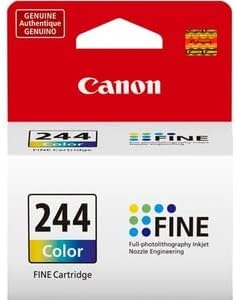

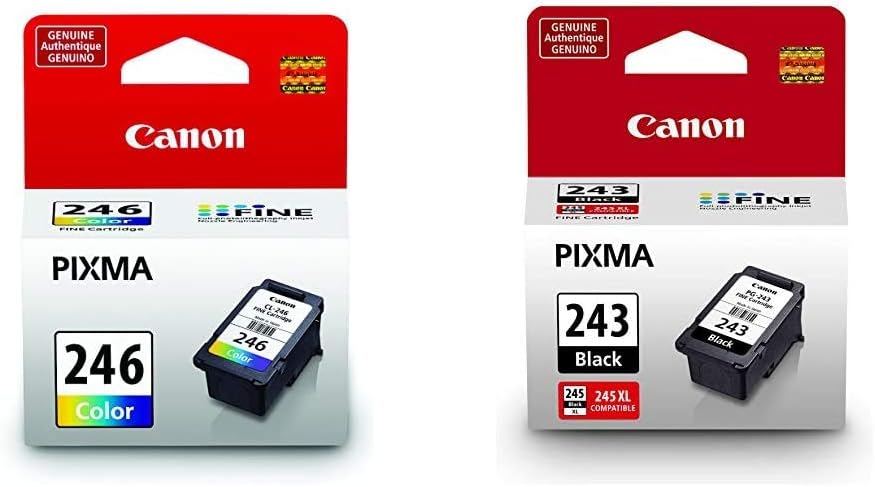


Whether you need occasional documents at home, high-volume office printing, or supplies for an existing device, the right printer setup depends on more than the initial hardware. Compare the printing method, paper handling, connection options, and ongoing supply requirements together.
This category includes printers and accessories across common home, business, and specialty uses. Product specifications can help narrow the selection before checking the current price and availability on Amazon.
Start with the type of work the printer will handle most often. A compact printer may suit occasional documents and limited desk space, while an office-oriented model may be more appropriate for frequent printing, larger paper capacity, or multiple users. If photos, labels, receipts, or color graphics are important, look closely at the printer’s intended media and output capabilities rather than choosing based only on general print speed.
Consider these questions:
Inkjet printers are commonly considered for color documents, images, and general home use. When comparing them, review color capability, supported paper sizes, borderless printing information, and the available cartridge or ink-tank system. If a printer will sit unused for long periods, supply and maintenance guidance may be especially relevant.
Laser printers are often evaluated for text-heavy workflows and routine document production. Compare monochrome versus color output, print speed specifications, paper capacity, automatic duplex printing, and the type of toner required. A laser device can also be a practical choice when multiple people share a printer for regular office documents.
All-in-one models combine printing with functions such as scanning and copying. They can save space and simplify a home office or small business setup. Compare the scanner type, automatic document feeder availability, duplex capabilities, control panel, and wireless features. If scanning is a major part of the workflow, also browse Scanners & Accessories for dedicated equipment and related supplies.
Compact photo printers, label printers, receipt printers, and other specialty devices are designed around particular media or workflows. Before choosing one, verify the supported paper, label dimensions, roll or sheet format, connection method, and whether the required consumables are easy to identify. Specialty printers may not replace a general document printer, but they can be a better fit for a focused task.
USB connections can suit a single computer, while Wi-Fi may make printing easier from multiple devices. Some printers support mobile printing or network administration features. Confirm compatibility with the computers, phones, tablets, operating systems, and network setup that will be used. For shared environments, compare user access, connection stability, and setup requirements.
Look for the manufacturer’s stated resolution, color support, and speed specifications, while remembering that real output can vary by document type and print settings. Text, photographs, and graphics place different demands on a printer. Automatic duplex printing can reduce manual page handling for two-sided documents, but confirm whether it applies to the media and print modes you plan to use.
Check input and output tray capacity, supported paper sizes, envelope handling, and specialty media compatibility. A manual feed slot may be useful for occasional envelopes or thicker sheets. For an office, compare the number of trays and the ability to separate different paper types. Always match the printer’s supported media specifications to the paper already used in the workflow.
Compare the cartridge or toner format, color configuration, replacement process, and included supplies. Some devices use separate cartridges for each color, while others use combined color cartridges or refillable reservoirs. Also check whether accessories such as maintenance units, printheads, drums, ribbons, or waste containers apply to the selected model.
The catalog includes printers and related supplies from brands such as HP, Canon, Brother, Epson, and Lexmark. It also includes consumable-focused brands including E-Z Ink, Valuetoner, LD Products, v4ink, GREENBOX, TRUE IMAGE, and MYCARTRIDGE. These names can help organize a comparison, but compatibility should remain the deciding factor for replacement supplies.
When shopping for ink or toner, match the exact printer compatibility information and cartridge designation. Check whether the listing is for a single color, a multipack, a toner cartridge, a refill product, or another supply type. For accessories, confirm that the dimensions, connection, paper format, and intended device all align with the printer you own.
Printers are part of a broader office setup. You can compare Telephones & Accessories, Calculators, Presentation Products, Other Office Equipment, and Point-of-Sale (POS) Equipment when building out related workplace equipment.
Keep the printer on a stable surface with enough room to open trays, replace supplies, and clear paper jams. Use paper that matches the device’s specifications, and store unopened cartridges or toner according to the manufacturer’s guidance. If print quality changes, check the printer’s maintenance tools and inspect the paper path before replacing multiple components.
For wireless printers, confirm the device is connected to the intended network and that the computer or mobile device uses a compatible print method. For a shared office printer, label supplies clearly and keep a record of which cartridge or media format is required. These steps can reduce setup problems and help prevent incompatible purchases.
Choose based on your typical documents, color needs, print frequency, and supply preferences. Inkjet models may suit color and image-focused work, while laser models are often considered for text-heavy workflows.
It can be useful when printing, scanning, and copying are all needed and desk space is limited. Compare the scanning features and document-handling options with those of a dedicated scanner.
Verify the exact printer compatibility, supply type, color or cartridge configuration, and whether the listing includes the quantity and format you need. Do not rely on appearance alone.
Wireless connectivity can make printing from multiple computers and mobile devices more convenient. Confirm that the printer supports the operating systems, apps, and network setup used in your home or workplace.
Match the paper size, weight, finish, and media type to the printer’s supported specifications. Specialty paper, envelopes, labels, and thicker sheets may require a specific tray or feed method.
Depending on the device, accessories may include ink or toner, paper, maintenance components, cables, stands, trays, or specialty media. Review the printer’s compatibility information before adding any accessory.